Garmin watch showing wrong swim distance? This is how to fix it
Did your Garmin watch skip lengths on your pool swim workout? Follow these easy steps to fix it.
Why does Garmin show the wrong distance for your pool swim?
Garmin sports watches (e.g. Forerunner 735xt, Forerunner 245, Fenix 5, and many more) use sensors and pattern recognition to count the lengths on your pool swim activity. Most of the time it manages to accurately keep track, but occasionally it can get things wrong. This is often due to:
- Swapping strokes halfway down a length - this can make the watch think that you swam two lengths
- Not pushing hard enough off the wall - Garmin watches won’t count this as two lengths
- Wearing your watch too loose - if your watch strap is too loose, it will move around whilst swimming which can create noise for the sensors
How to fix wrong Garmin swim distance
Garmin will let you correct the total distance of your swim in Garmin Connect. Whilst this can be useful for keeping track of your overall distances, it will still show faulty lap data on your workout. To fix it properly, you can use Swim Blueprint to edit your pool swim .fit file.
- Open Garmin Connect and find the swim workout
- Click the settings icon and then select “Export File”
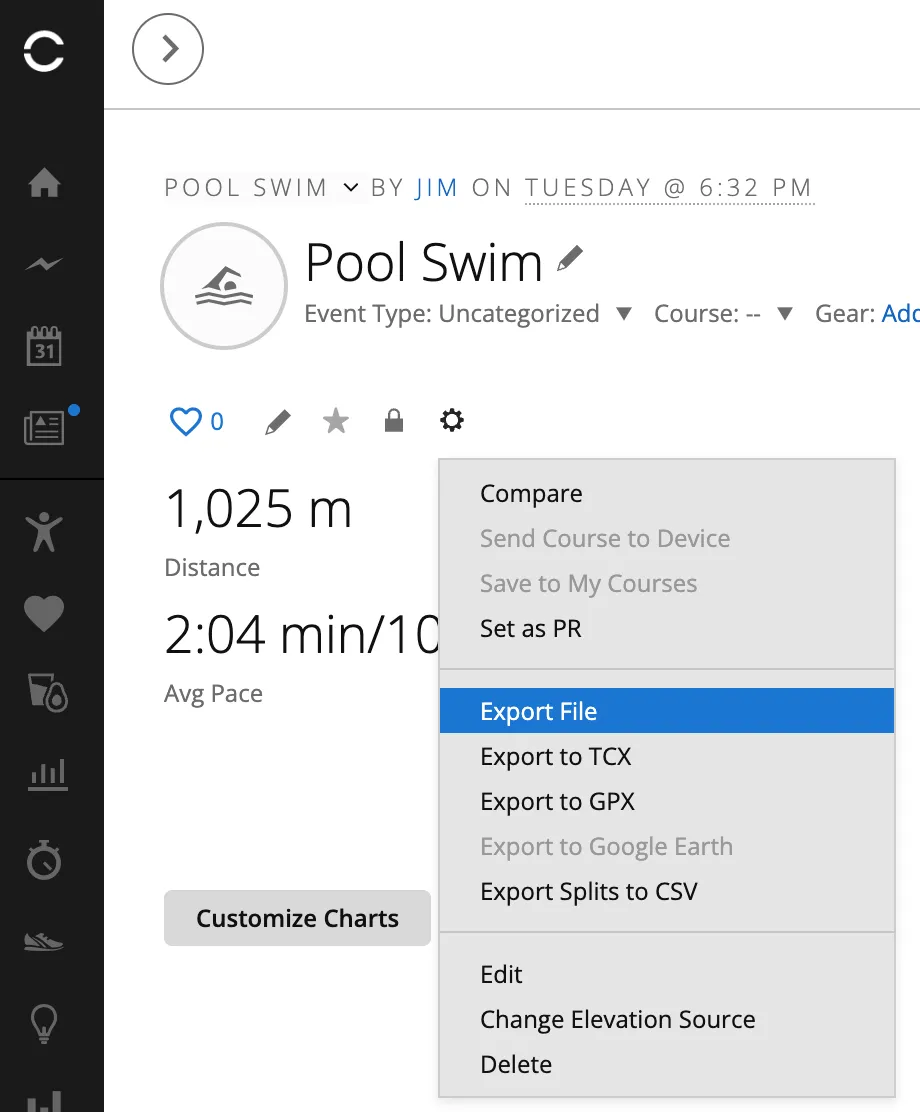
- Save the .fit file somewhere on your device
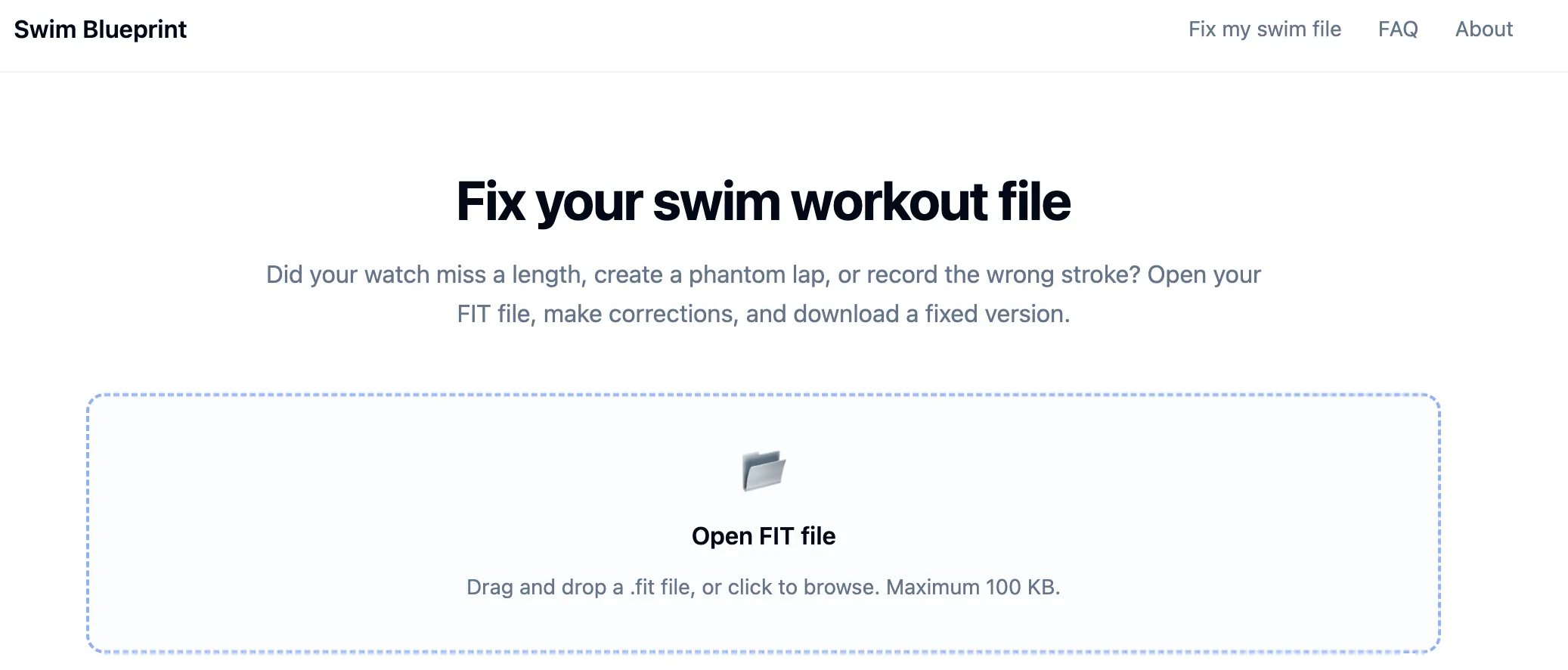
- Go to the Swim Blueprint editor and open your .fit file
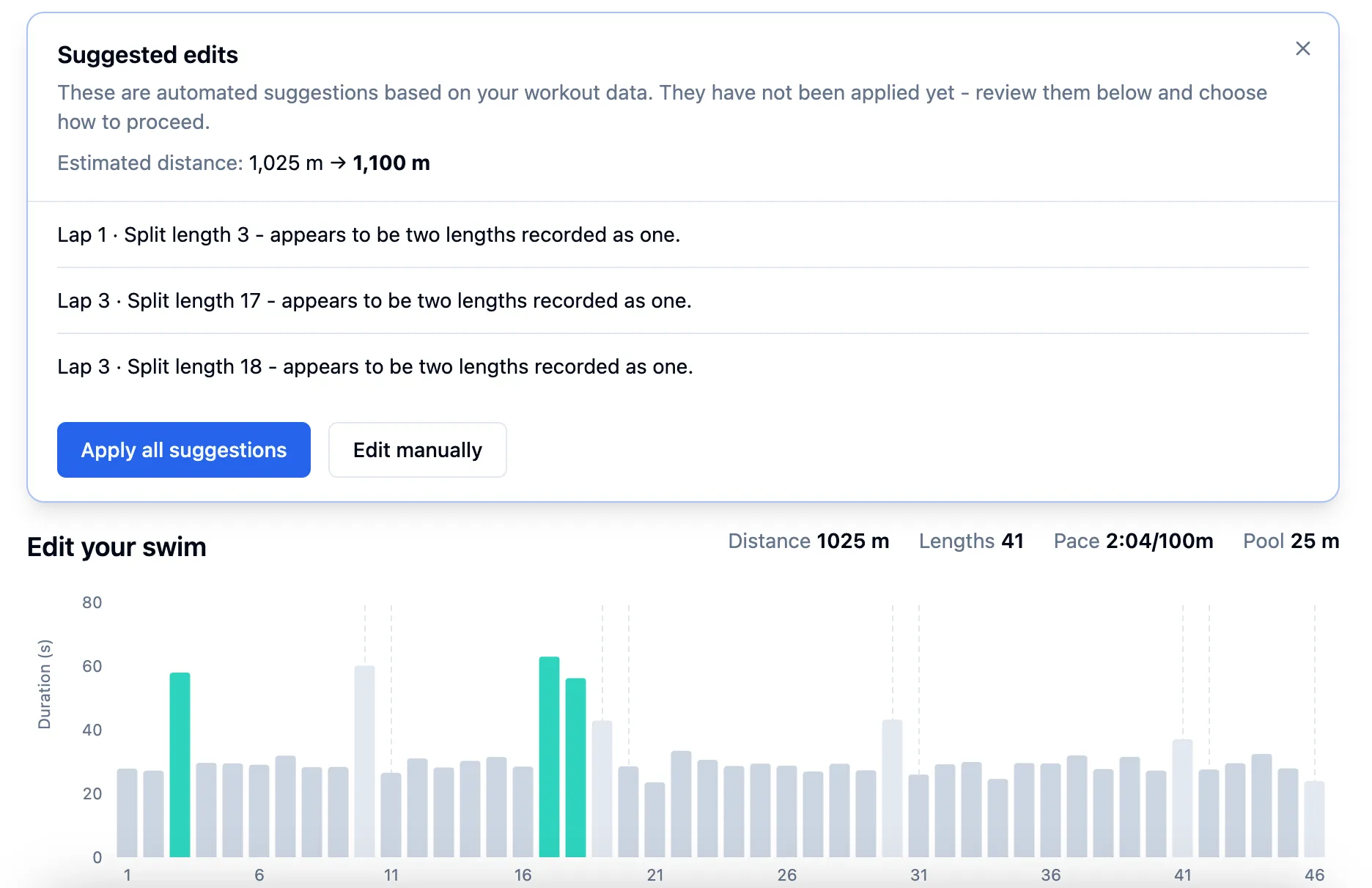
- Once you have opened the file, Swim Blueprint will check the file and suggest which lengths need to be edited. You can either apply these edits, or choose to edit it manually.
- The green bars on the editor represent the suggested edits
- If Swim Blueprint doesn’t detect any obvious errors, it will take you straight to the editor for you to edit manually
- The editor lets you select lengths from your swim workout and correct the data:
- Select any length to change the stroke type
- Select two adjacent lengths (ctrl+click or cmd+click) to merge them into one
- Select one length to split it into two
- Edit the pool length for the whole workout
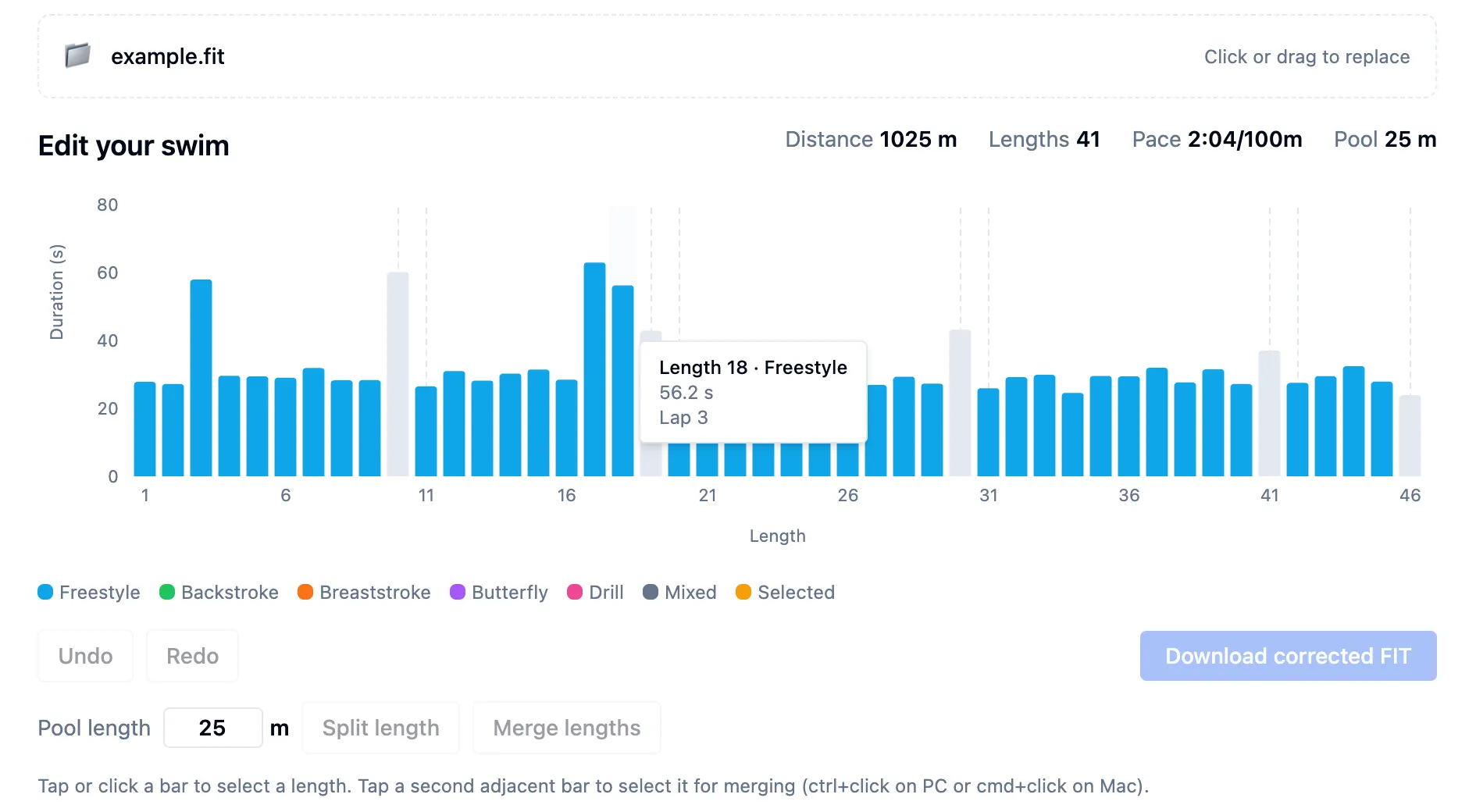
- Once you are done fixing your swim workout data, you can export the corrected file by clicking the “Download corrected FIT” button
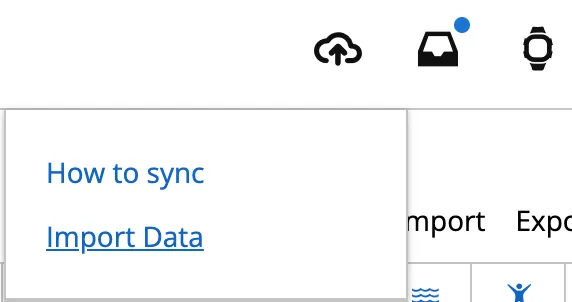
- Now you’re ready to re-upload your swim to Garmin Connect. Simply click the “upload” icon and then select “Import Data” and then choose the file to upload. (you may need to delete the original workout before it lets you upload the fixed version)